In the lifecycle of any business, there comes a time to retire a project, change business needs, or upgrade your infrastructure. To ensure a smooth transition, follow this guide to terminate services without overpayment or unnecessary hassle.
Step 1: Access Your Client Portal
Begin by logging into your user client portal. You can access it directly at cs.MojoHost.com/login or by clicking the Login button at the top of the MojoHost.com website.
Enter your dedicated email and password. Once signed in, look for the Services button located on your main toolbar and your home screen.
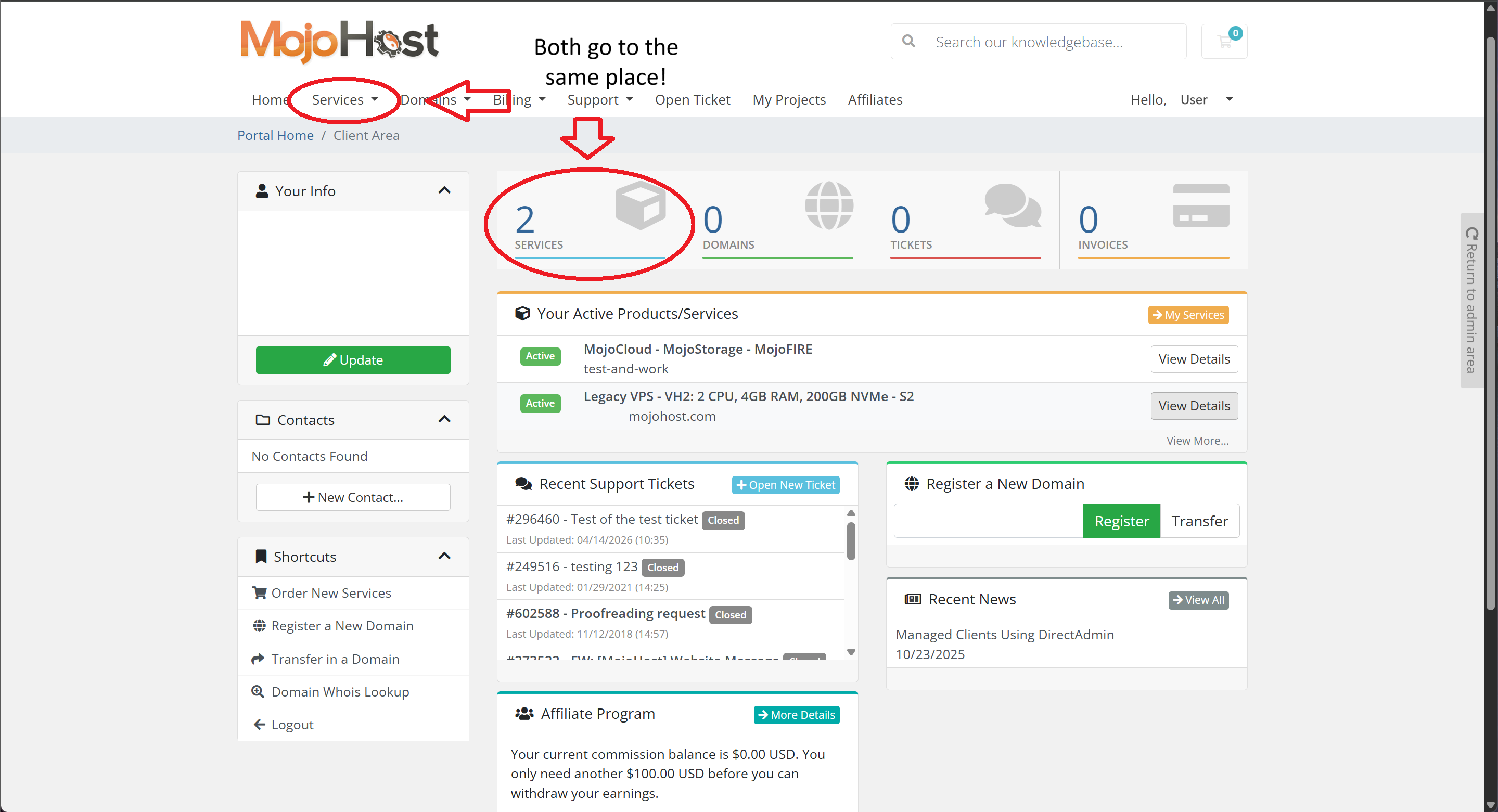
Step 2: Locate Your Product
After clicking the Services button, find the specific product or service you wish to cancel. You can scroll through your list of entries or use the Search function for faster results.
Note: If you have many services, you may need to navigate through multiple pages by clicking the Next button in the bottom right-hand corner.
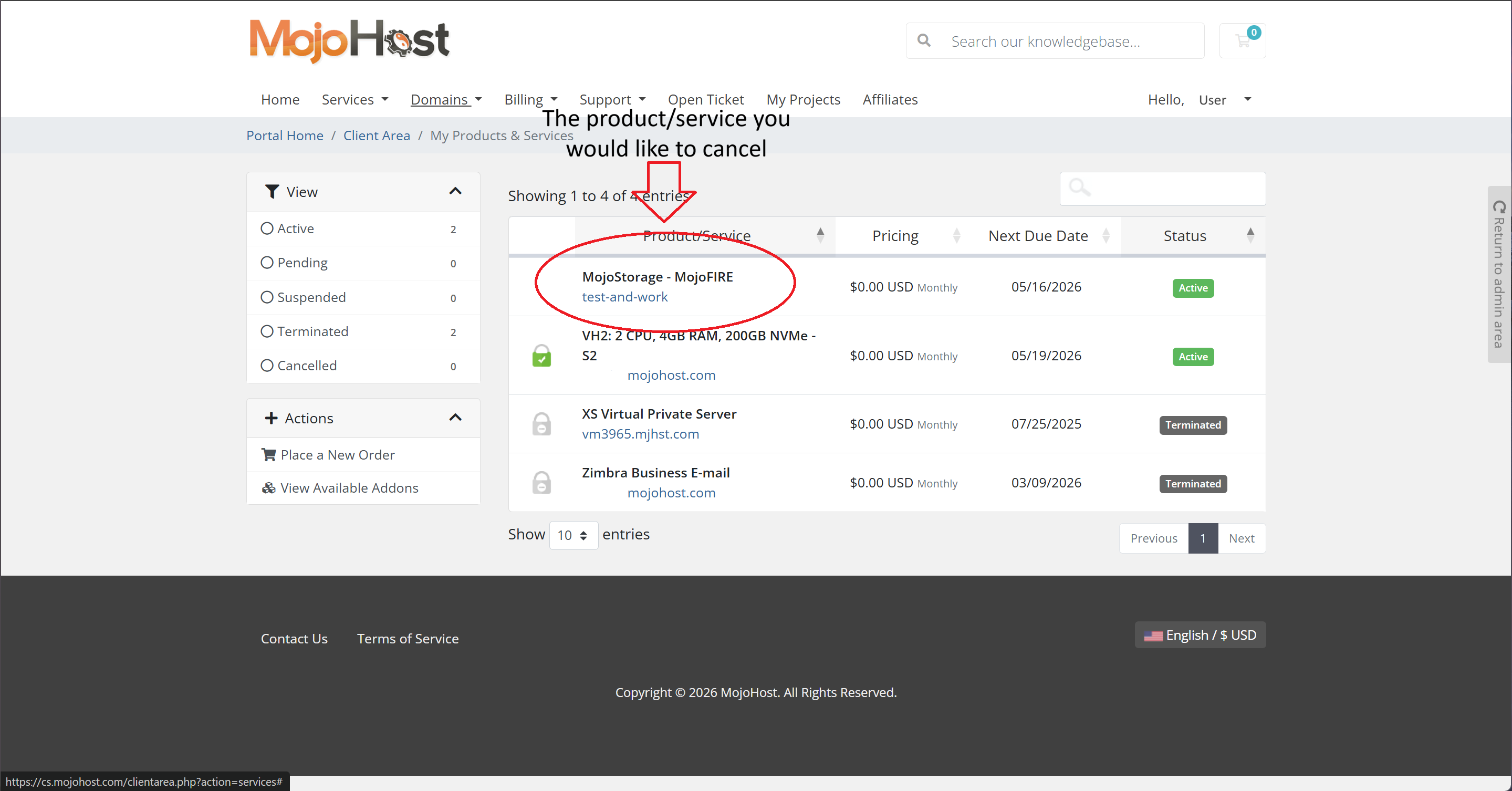
Step 3: Open the Product Page
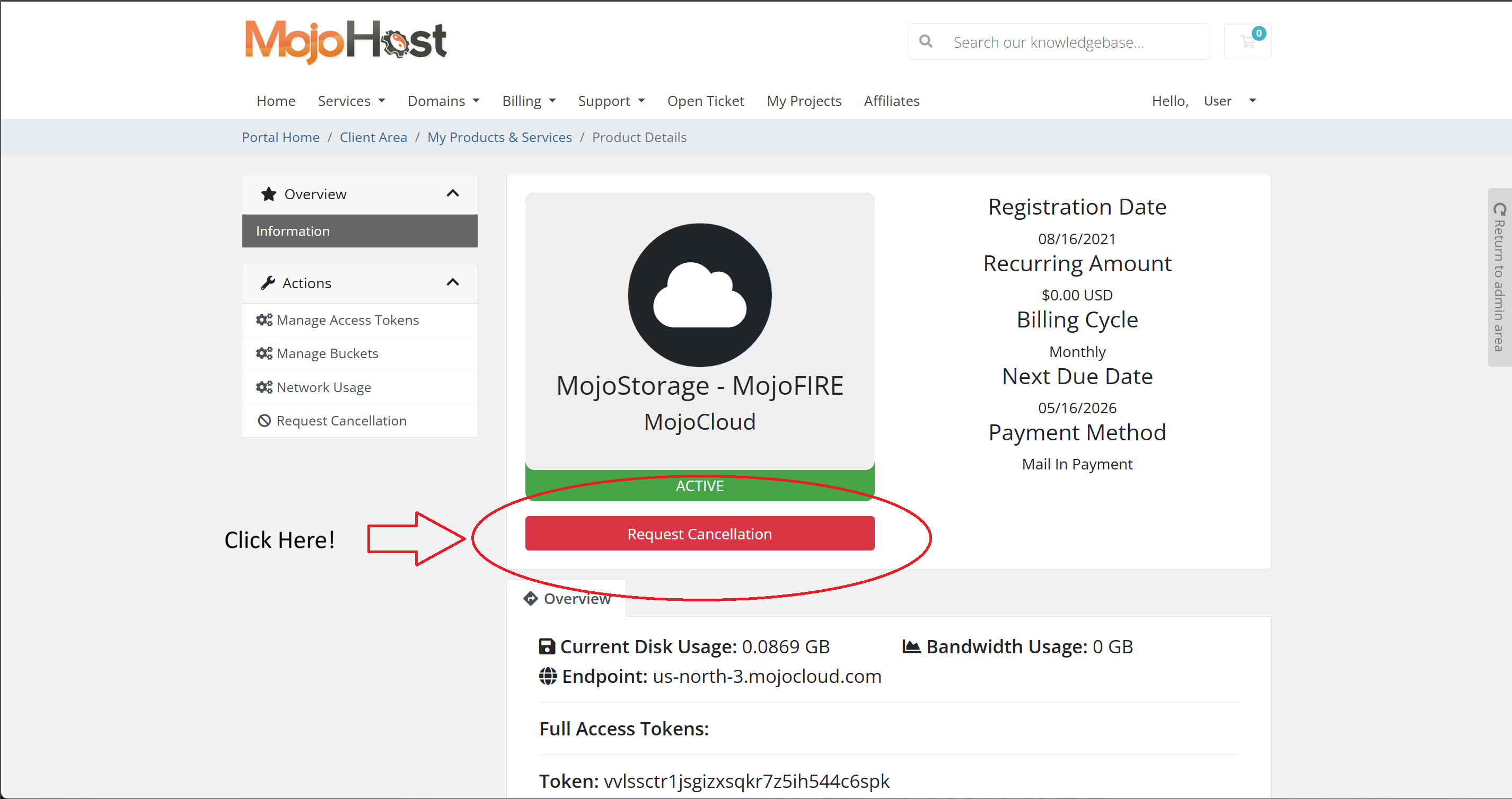
Click on the specific field of the service you want to terminate. Once you are on the individual product page, locate the Request Cancellation button situated beneath the service details.
Step 4: Describe the Reason
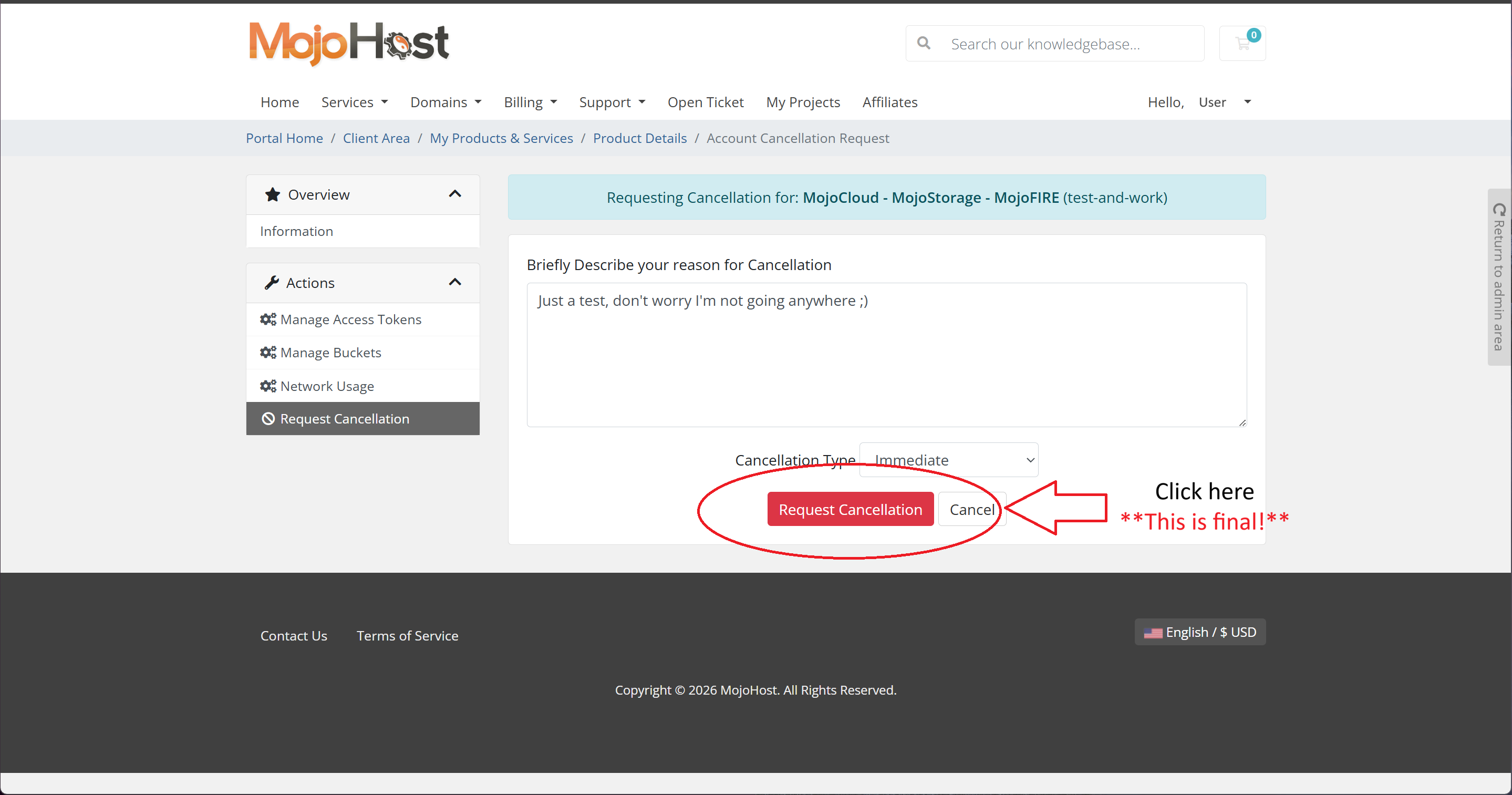
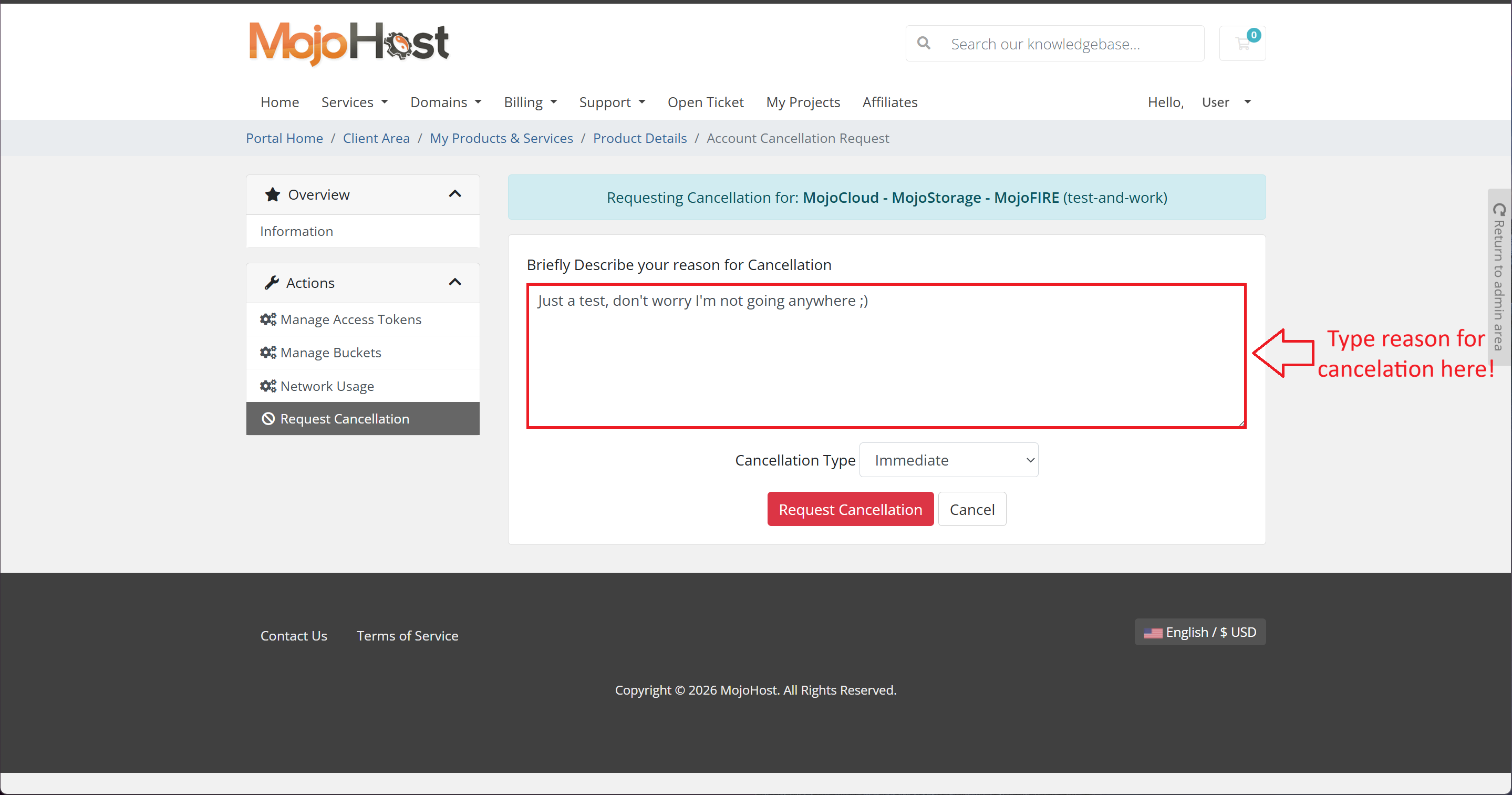
A confirmation window will appear. To proceed, you must provide a brief description of why you are terminating the service.
-
Example: "I no longer require this specific product."
Step 5: Select Your Cancellation Type
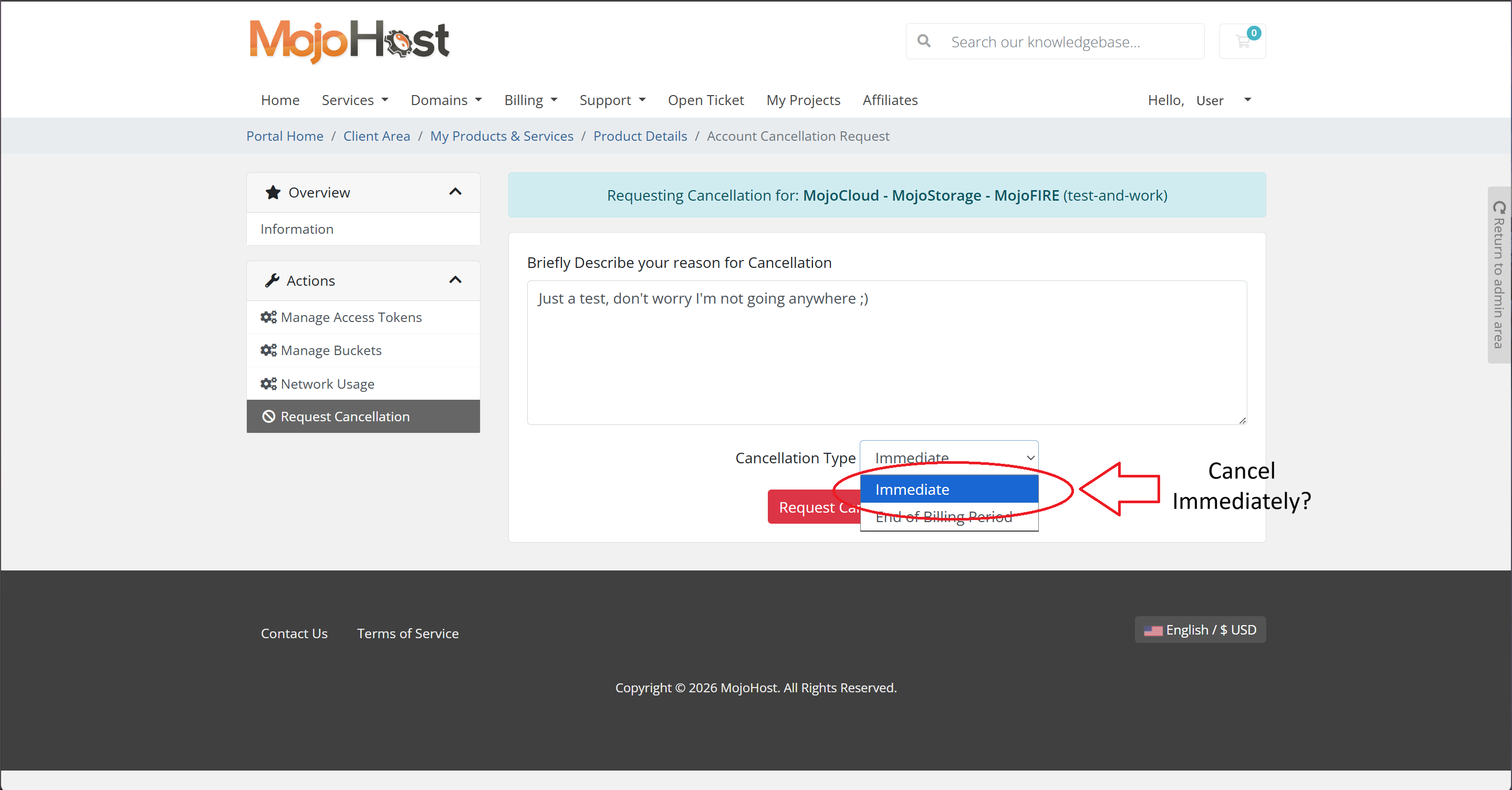
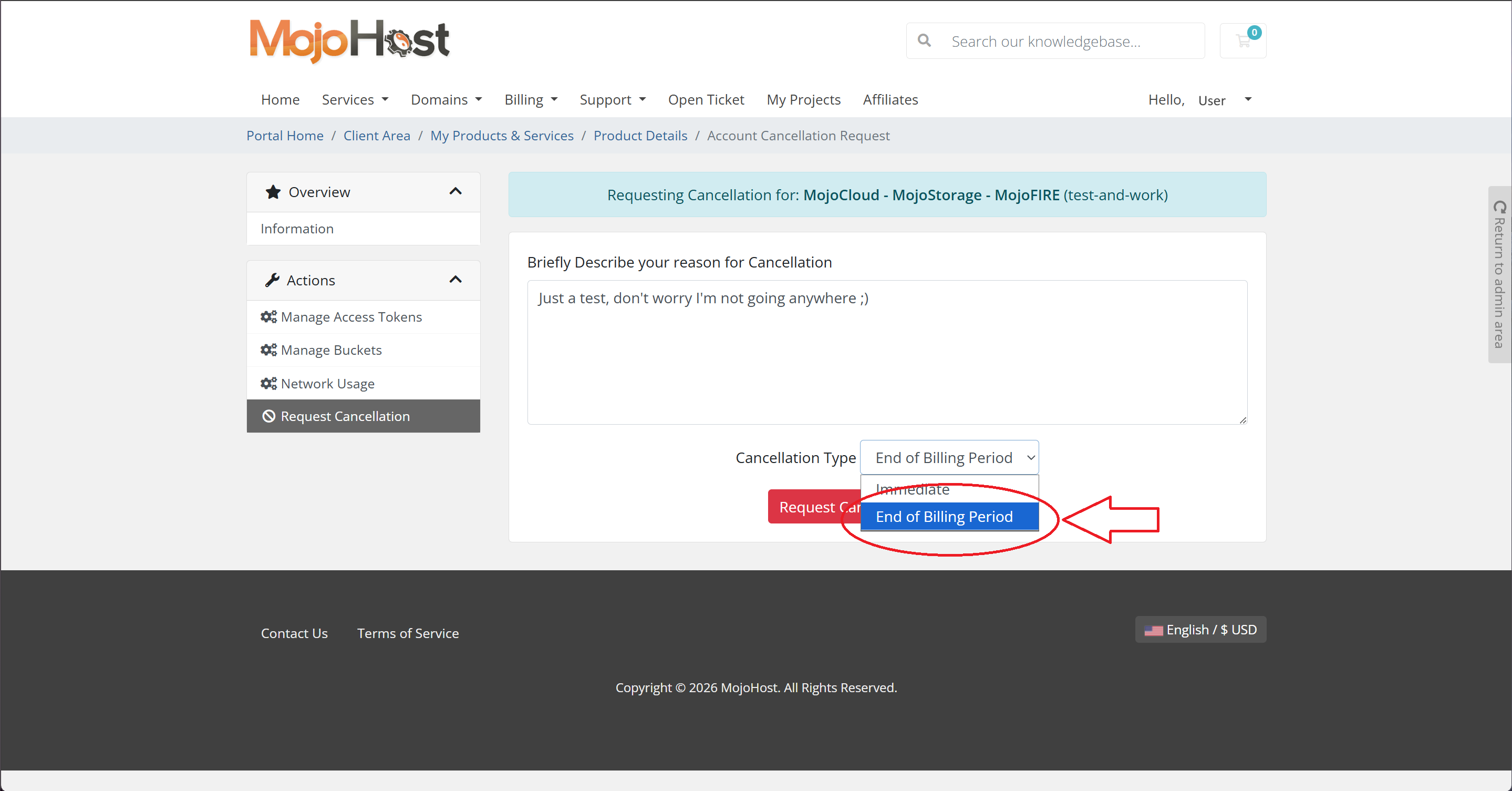
You must choose between two timing options for your termination:
-
End of Billing Cycle: Your service will remain online until the final day of the current invoiced period, and no further bills will be generated.
-
Immediate: The service is terminated right away.
Important: While you can contact the billing team to request a refund or invoice removal for immediate cancellations, you remain responsible for the current billing period. We strongly recommend selecting "End of Billing Cycle" to ensure you get the full value of your paid period.
Step 6: Finalize the Request
After selecting your cancellation type, click the Request Cancellation button at the bottom of the screen.
Warning: This action is final. Before clicking, please ensure you have selected the correct service and have backed up any necessary data.